

Who it is for
For people getting started with their own account.How to open
Dashboard › Introduction/dashboard
Screens and features
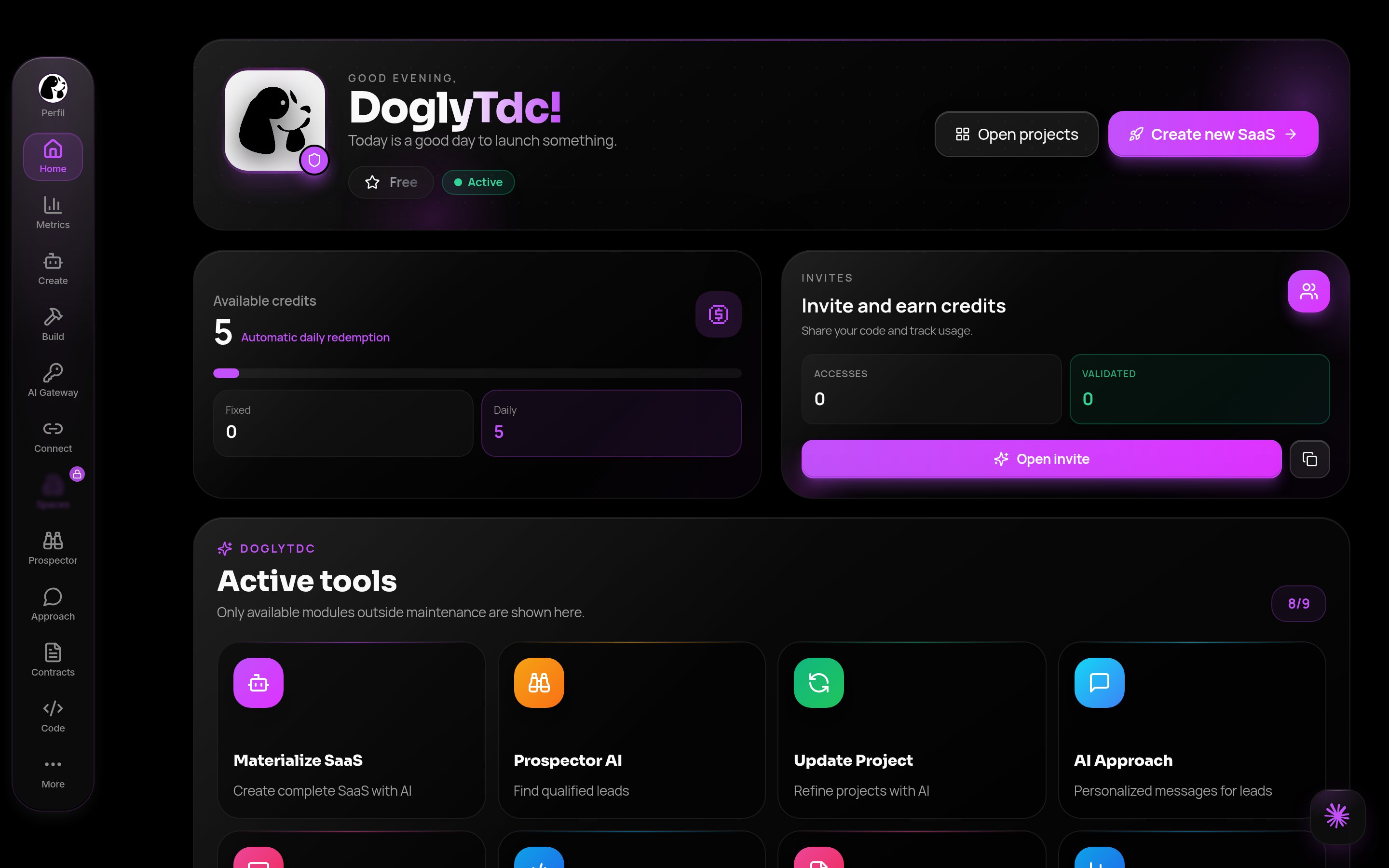
Introduction in DoglyTdc
Home
Home differs for Free and subscribers, with balance, cards and shortcuts. A visible card does not guarantee access.1
Open Home
Sign in and open the dashboard at
/dashboard. Home is the first screen.2
Read the cards
Check your credit balance and the shortcut cards shown for your plan.
3
Follow a shortcut
Click a card to open the feature. If it needs another plan, the dashboard tells you before granting access.
Menus and More
Use the sidebar or bottom bar according to appearance and screen size. More shows other destinations. Esc and browser Back can close the grid; the active item stays visible.1
Use the bar
On a computer, use the sidebar; on a phone, the bottom bar.
2
Open More
Tap More to see every feature in a grid.
3
Close the grid
Pick a destination, press Esc or use the browser back button.
Modular menu
A modular feature has its own screens. Contracts, Slides and Connect replace navigation with a feature menu. Use its Back action to return to the designated destination.1
Open the feature
Open Contracts, Slides or Connect from the menu.
2
Move between modules
The bar now lists the feature’s own screens, such as Create or Projects.
3
Go back
Use Back at the top of the Modular Menu to return to the previous destination.
Addresses with ?tab=
The address preserves recognized screens on reload, Back and Forward. Examples: ?tab=contracts:create, ?tab=slides:projects and ?tab=connect:automation. An unknown internal screen falls back to feature home.1
Open an inner screen
Inside a feature, open the screen you need, for example Contracts › Create.
2
Copy the address
The browser shows something like
/dashboard?tab=contracts:create. Save or share that link.3
Reopen
Opening the link, reloading or using back/forward returns you to the same screen.
Search and redirects
The reviewed navigation components have no global feature search. Search belongs to individual tools. AI Chat, Build Studio, Pay and Hub open their own destinations; Spaces and Workspaces check access and redirects. Tutorials is still locked while in development.1
Choose the feature
Open the feature from the menu or More; there is no global feature search.
2
Search inside it
Use the tool’s own search field, when it has one.
3
Follow the redirect
AI Chat, Build Studio, Pay and Hub open in their own screens; Spaces and Workspaces check your access before opening.
Getting started
Create account
Create your account, confirm your email, recover your password and finish the welcome setup.
First steps
From sign-up to first use: account, dashboard, profile and credits in order.
Dashboard
Move around Home, the menus, the Modular Menu and dashboard addresses.
Account and profile
Edit your name, @, photo and presence, and see what your public profile shows.
Credits and plans
Understand balance, purchases, history, costs and plans in the Credits Center.
AI
AI Chat
Chat with AI, choose reasoning effort, and inspect measured usage.
Build Studio
Build with AI, review versions, and publish as a separate action.
AI Gateway
Manage AI API access with restricted keys, paid credits, and recent usage records.
Code generator
Understand where the Code menu leads today and choose an available creation workflow.
Materialize
Turn an idea into a structured prompt and understand workflow-specific costs.
Business
Prospector
Find businesses, review leads, and track searches without treating requested quantities as guaranteed results.
Outreach
Prepare sales messages, organize conversations, and configure channels without mistaking configuration for delivery.
Contracts
Create contracts, track signatures, and distinguish contractual records from financial confirmation.
Metrics
Review contract, lead, and activity indicators while understanding period-filter and trend limitations.
Partners
Understand applications, promotion, and referral attribution with marketing consent.
Platform payments
Manage payment connections and understand the limits of the available tests, products, and reports.
Connect
Link Cakto and Kiwify, track products and events, and understand the difference between unlinking and deleting.
Build
Slides
Create, edit, present, and share presentations in DoglyTdc.
Spaces
Learn about niche-based Spaces, plan access, and transaction fees.
Workspaces
Explore public environments, join a workspace, and understand administration controls.
Projects
Browse projects, details, and prompts without mistaking a text download for an app export.
Git
Access repositories, edit local files, and understand saving and sending limits.
Manager
Manage project operations, transfers, and exports with clear limitations.
Script Sync
Sync scripts with your workspace and manage requests and individual access.
Apps
Hub
Explore communities, messages, calls and profiles, with direct links to Hub guides.
Pay
An overview of sales, balances, PIX and DoglyTdc Pay integrations.
Scripts
Explore creation, editing, projects, CLI, integrations and webhooks in Scripts.
Browser
Browser installation, assistant sign-in, and script management.
Mobile
PWA access, the native experience, and device permissions.
Status
Check availability, service checks, and recent maintenance.
Account
Settings
Adjust your account appearance, preferences, and privacy.
Notifications
Enable browser push and understand which preferences are actually saved.
Badges
View your badges and manage visibility and featured status independently.
Teams
Invite existing accounts to collaborate in a workspace.
Security
Review passwords, PIN protection, recovery, and signing out other sessions.
Help
FAQ
Quick answers about accounts, AI, collaboration, and support.
Tutorials
Follow published lessons, materials, and learning progress.
Official links
Addresses for the DoglyTdc platform, documentation, and services.
Support
Send a clear support request with up to six attachments.
Address map
Credits and limits
Browsing and editing your profile do not spend credits. Tool actions may use your balance.Permissions
Sign in to edit your data. Spaces and Workspaces require Premium or higher for ordinary access.Common errors
Frequently asked questions
Do I need a subscription?
Do I need a subscription?
Browsing and profile editing do not require a subscription; tools may require plans.
Are Pay and credits the same?
Are Pay and credits the same?
No. They are separate balances.
Does a shortcut unlock access?
Does a shortcut unlock access?
No. Permission checks still apply.
Related
Create account
Create your account, confirm your email, recover your password and finish the welcome setup.
Account and profile
Edit your name, @, photo and presence, and see what your public profile shows.