

Summary
Settings brings together personal controls for the DoglyTdc dashboard. Use this area to open profile, security, notifications, and appearance. Some options depend on the context in which you opened the dashboard.Who it is for
- People who want to customize the interface.
- Account holders reviewing privacy options.
- Users looking for their personal account controls.
How to open
1
Enter the dashboard
Sign in to your DoglyTdc account.
2
Open Settings
Use the settings option in the dashboard navigation.
3
Choose an area
Open the item for the setting you want to change.
Screens and features
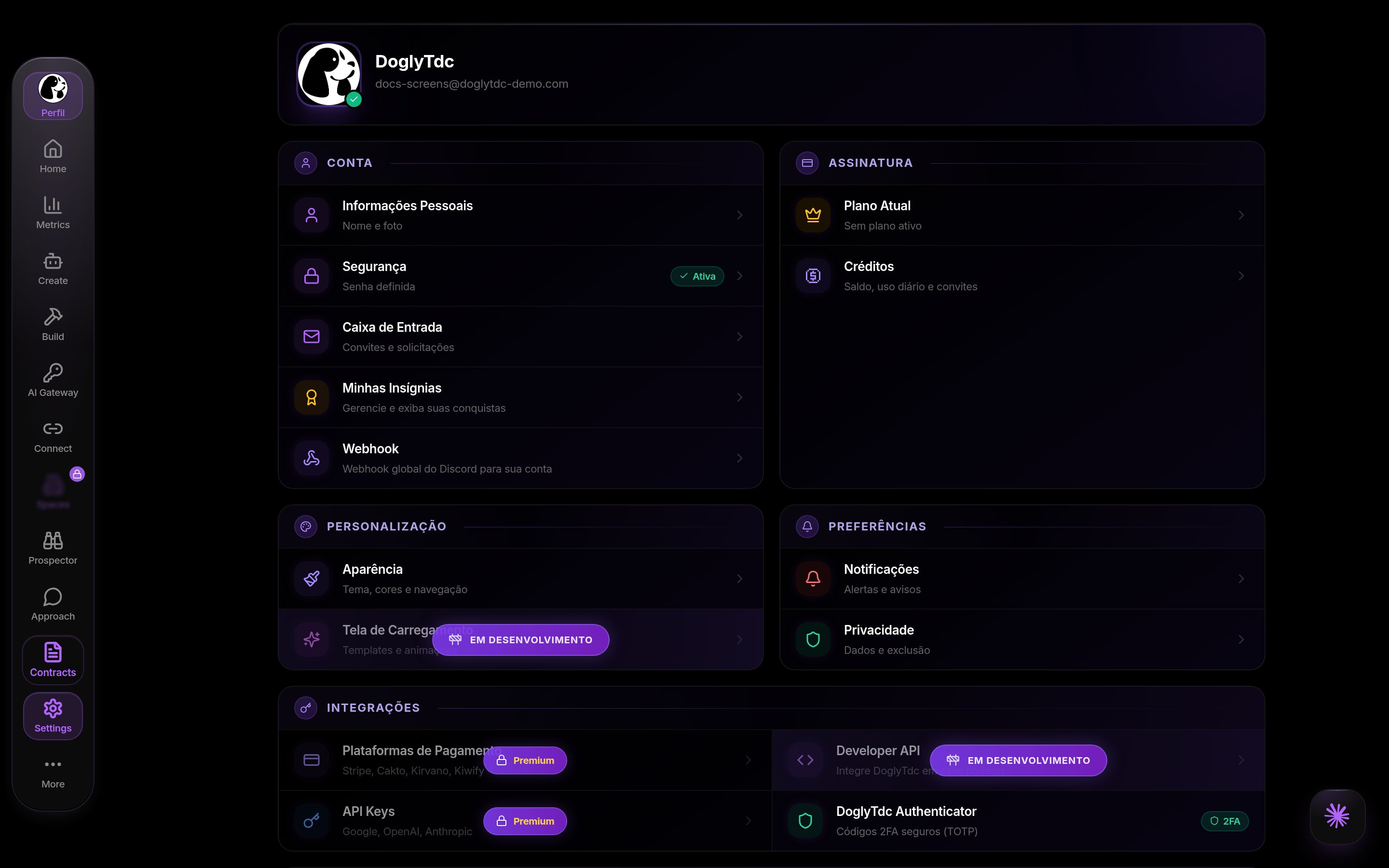
Settings in DoglyTdc
Main view
Items group settings by topic. Profile, Security, Notifications, and Privacy open their own views. Return to the main list to switch topics.Appearance and preferences
The interface includes theme selection and navigation preferences. An interface scale control is also available. Options may differ between the dashboard, app, and a Space. A visual preference is not an access permission.Privacy
This area includes privacy information and an account deletion request flow. Submitting a request does not immediately delete your account. Read the confirmation before continuing.Cookie notice
The notice offers Accept all, Necessary only, and Customize. Your choice is valid for 12 months. After that period, the notice appears again. A saved choice without a valid date also needs to be renewed.1
Read the options
Choose whether to accept all categories or keep only necessary ones.
2
Customize if needed
Use Customize to review your choice before confirming it.
3
Confirm your decision
The preference is stored in the browser you are using.
Version history
Open the update history through the Help Center. This is not a history of actions performed on your account. Check updates to understand interface changes.Limits
- Not every preference is synchronized across browsers.
- Cookie consent needs to be renewed after 12 months.
- Space options may open settings for that particular Space.
- Email and security changes have their own confirmation flows.
Permissions
Sign in to access personal dashboard settings. Space controls depend on your role in that environment. Personal settings do not grant administrative access.Common errors
These original interface messages may appear when setting a PIN.Frequently asked questions
Where can I see updates?
Where can I see updates?
Open version history in the Help Center.
Why did the notice return?
Why did the notice return?
Your choice expires after 12 months; an invalid date also requires a new choice.
Does changing the theme change my permissions?
Does changing the theme change my permissions?
No. Appearance and access are separate controls.