

Summary
Materialize organizes an application idea into a structured prompt. Start from a template or answer a guided wizard. Use the result to continue on your selected platform. Generating a prompt does not automatically build or publish a site. Implementation happens in the destination environment.Who it is for
- People organizing SaaS requirements.
- People starting from a template.
- People defining users, pages, and visual style.
- People preparing changes to an existing project.
How to open
Go to Dashboard › Create SaaS › Materialize, using?tab=materialize.
The SaaS home entry is ?tab=saas-home.
Project updates use ?tab=update.
Different paths have different costs and requirements.
Do not add unrelated prices as if every project used every path.
Screens and features
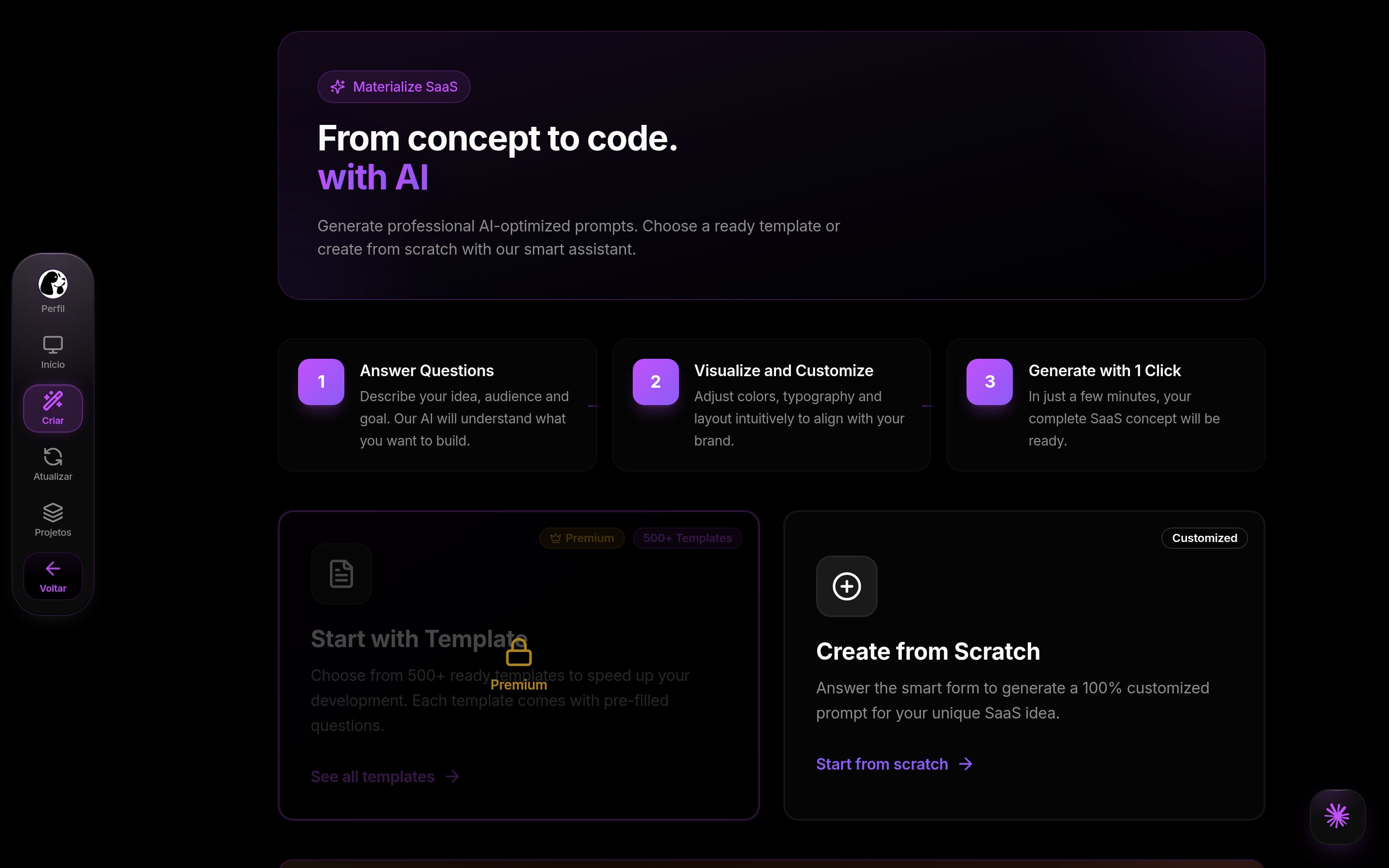
Materialize in DoglyTdc
SaaS home
Home provides access to creation, projects, and updates. It helps you continue existing work. Selecting creation opens Materialize.Starting path
Choose a template or start from scratch. Template access depends on your plan. Starting from scratch opens the question-based wizard.1
Choose a starting point
Select a template or start from scratch.
Check whether your plan allows the selected path.
2
Define the project
Review requirements, users, and intended outcome.
Complete the wizard’s required fields.
3
Generate the prompt
Check the workflow cost and your balance.
Wait for generation before repeating the request.
4
Continue on the chosen platform
Review and copy the prompt.
Use it in the destination platform to begin implementation.
Template gallery
The gallery includes search and categories. Selecting a template opens details before confirmation. Individual templates can have additional plan requirements. Confirmation starts direct prompt generation. Templates with wizard data also offer opening in the wizard. That path pre-fills answers for review.Starting from scratch
The wizard presents questions and conditional choices. Answers define purpose, audience, pages, and visual identity. Required fields are checked before generation. AI actions can organize an idea or suggest features. These are supporting steps, not product implementation. Review suggestions before using them.Result
The result provides a prompt to copy and use elsewhere. The direct template result also supports a Markdown download. Saving the prompt helps you review the specification. The wizard can save a project in your project area. That does not represent a public deployment. Check the selected platform before following the result instructions.Updating a project
The update area works from an existing project. The dashboard checks account access to this feature. Project selection can carry over from the project list. Describe the requested change with sufficient context. An update request does not prove an external site changed. Review the output and continue where the project is implemented.Credits and limits
Direct confirmation and the standard wizard deduct before generation.
This guide therefore does not promise automatic refunds after generation failures.
Steps without an established fixed price are not described as free.
Permissions
Template access is checked by plan. The template entry states Premium or higher is required. Individual templates can add their own requirements. The dashboard indicates Plus when project updating is locked. The wizard handles an unlimited-use condition, but it is not universal. Check the actual state shown for your session.Common errors
These are actual Portuguese interface messages.Frequently asked questions
Does Materialize deliver a finished site?
Does Materialize deliver a finished site?
No. It provides a prompt for implementation on the chosen platform.
Does every path cost 2 credits?
Does every path cost 2 credits?
No. Direct template generation uses 2; the standard wizard uses 3, subject to its unlimited-use condition.
Are failures always refunded?
Are failures always refunded?
The current flow provides no such guarantee. These paths deduct before generation.
Are template confirmation and opening the wizard identical?
Are template confirmation and opening the wizard identical?
No. Confirmation generates directly; the wizard path lets you revise pre-filled answers first.