

Summary
The Code menu currently opens Scripts. It does not open a standalone description-to-code generator. This page explains the actual entry point and available alternatives. The menu name is not a promise to generate a finished application. Use Build Studio to build interfaces through requests. Use Materialize to prepare a structured project prompt.Who it is for
- People looking for the Code menu destination.
- People opening Scripts from the dashboard.
- People choosing between scripts, interfaces, and prompts.
- People following older references to generators.
How to open
Go to Dashboard › Code, using?tab=code.
Navigation forwards you to the Scripts home screen.
Its internal entry is ?tab=scripts:home.
This entry does not provide a separate generator or copywriting selector.
Components without a current navigation entry are not documented as available menu tools.
Screens and features
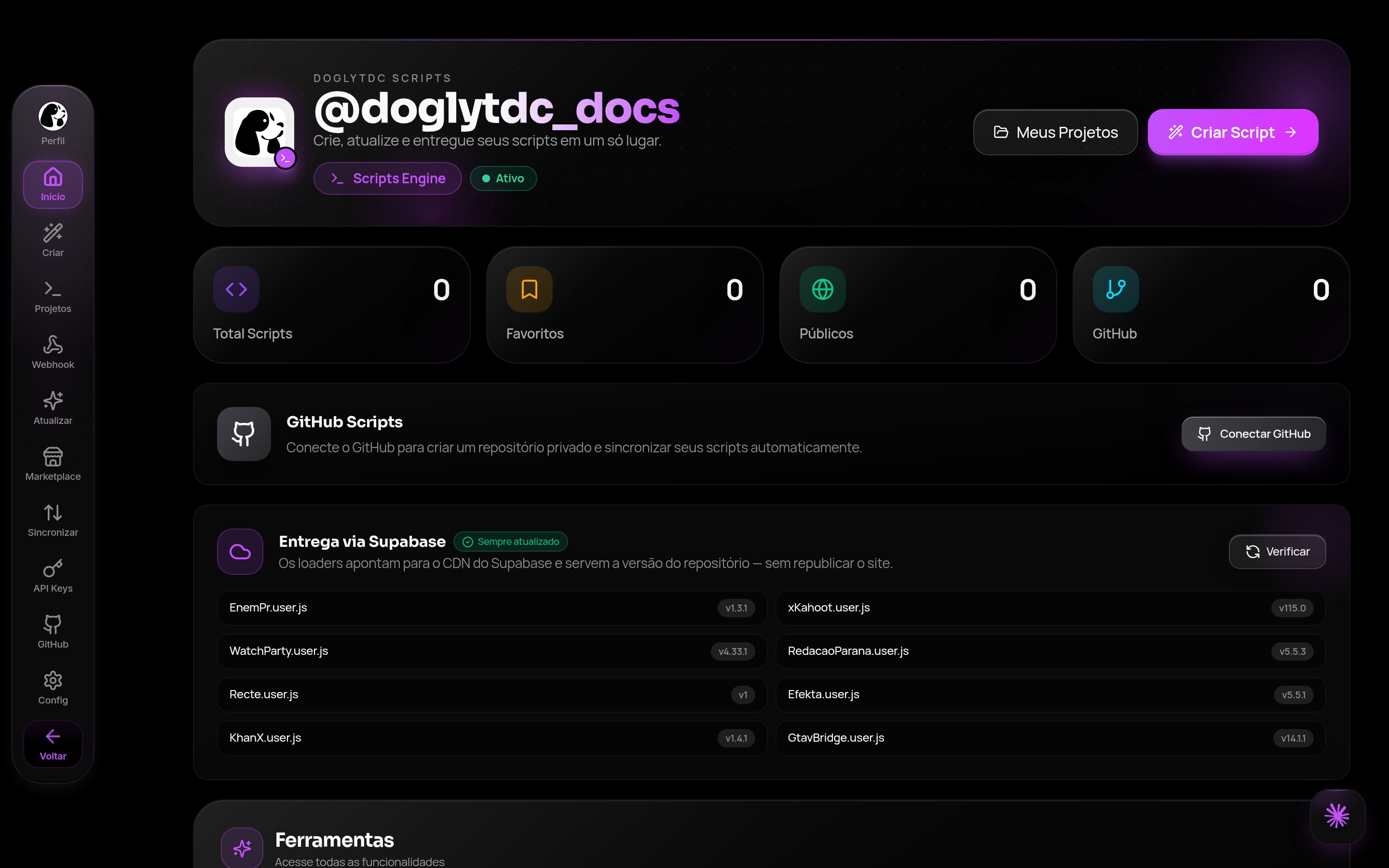
Scripts home in the dashboard
Code: current destination
Selecting Code displays Scripts. This area has its own internal navigation. See the Scripts guide for its available operations.1
Open the dashboard
Sign in and open the main menu.
Find Code.
2
Select Code
Select the menu item or use
?tab=code.
Navigation opens Scripts home.3
Continue in Scripts
Use the options actually shown in that area.
Do not expect a separate description-to-code screen.
Scripts
Scripts is the operational destination of Code. Internal pages use thescripts: entry family.
This explains address changes after menu selection.
Repository integration in this workflow belongs to Scripts.
It does not turn the menu into an independent generator.
Read the dedicated guide before configuring your work.
Build Studio: building through requests
Open Build Studio to create and change interfaces with AI. It has a separate dashboard entry,?tab=build.
Build has its own projects, preview, history, and publishing.
Model and effort are captured per request there.
Publishing is separate from editing.
Do not assume these features apply automatically to Scripts.
1
Choose by goal
Open Build Studio to build an interface through requests.
Stay in Code for the Scripts workflow.
2
Review the output
Inspect the result in your chosen tool.
AI output is not automatically validated code.
Materialize: preparing a project
Materialize opens through?tab=materialize.
It offers templates and a question-based wizard.
The result is a structured prompt for the chosen platform.
Selecting a template does not publish an application.
Copying a prompt does not execute it elsewhere.
Implementation continues in the target environment.
What this entry does not offer
The current menu does not expose an independent copywriting tool. Code also does not lead to a separate code-generation screen. This page provides no alternative access instructions for unexposed components. Use visible dashboard options as the availability reference. If an older tutorial suggests another screen, follow the current destination. Contact support for guidance on choosing a workflow.Credits and limits
There is no universal code-generator price attached to the Code menu. Usage depends on the tool and action actually performed. Opening a menu is different from executing a generation. AI Chat text uses measured tokens. Materialize has workflow-specific costs. Build displays its own balance and usage information. Read each guide rather than assuming equal costs.Permissions
The entry belongs to the authenticated dashboard. Destination features may have their own requirements. Opening Code does not grant extra Build or Materialize access. Respect permissions requested by the chosen tool. Do not share credentials or private content when seeking help.Common errors
The Code destination can display a service maintenance notice. The messages below belong to the linked AI alternatives, not a standalone generator. They are actual Portuguese interface messages.Frequently asked questions
Why did Code open Scripts?
Why did Code open Scripts?
That is the dashboard’s current routing, not an incorrect menu selection.
Where can I generate an interface from a description?
Where can I generate an interface from a description?
Use Build Studio and review the preview before publishing.
Does Materialize deliver a published site?
Does Materialize deliver a published site?
No. It prepares a structured prompt for the selected platform.