

Summary
Hub brings conversations, communities and calls into its own interface. You can talk in channels or through direct messages. Your profile represents you across these spaces. This overview is a starting point rather than an administration manual. See the Hub documentation for detailed instructions.Who it is for
- People who want to talk with contacts.
- Community members.
- Teams using text and voice channels.
- Community owners organizing roles and access.
- Developers building Hub applications and bots.
How to open
1
Sign in
Open DoglyTdc with the account you want to use in Hub.
2
Open Hub
Select Hub from the platform’s applications. Hub has its own navigation.
3
Choose a space
Open a conversation or choose a community in the sidebar.
Screens and features
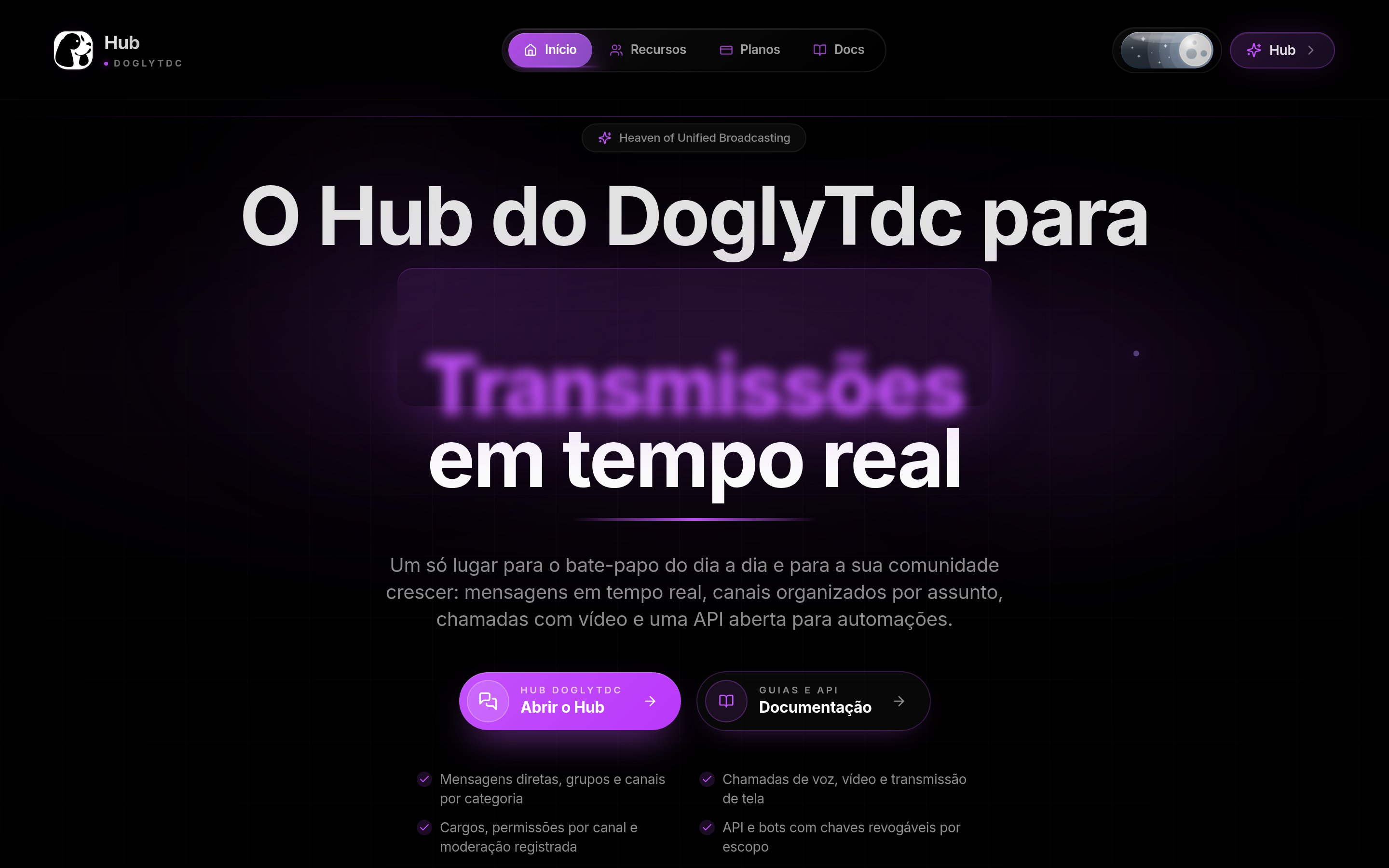
Hub home page
Conversations and messages
Hub supports direct messages and channel conversations. The interface includes message search and reactions. Message requests and an inbox are also available. Access to content depends on the conversation and its permissions. Continue with Messages.Communities
Communities organize channels, categories and members. The navigation lets you switch between communities. Discovery and invitations are available. Administrative controls are not available to every member. Read Communities.Calls
Calls include audio controls and device selection. The interface also supports screen sharing. Your environment may ask for microphone or screen access. Only grant access to devices and content you intend to share.1
Open a call
Use the call feature available in the conversation or channel.
2
Check your devices
Review audio input and output before speaking.
3
Manage your participation
Use the call controls to adjust audio or leave.
Profile and settings
Hub includes profiles, custom status and appearance settings. Sound, notification and device settings are also available. These preferences do not override community permissions. See Profile.Roles and integrations
Roles and permissions control actions within communities. Authorized applications and bots have dedicated documentation. Do not post integration credentials in public conversations.Credits and limits
This overview does not establish a universal message or call allowance. Available actions depend on context and permissions. A missing option does not necessarily indicate missing AI credits. Check the dedicated guides for additional features.Permissions
Joining a community does not automatically grant administration rights. Permissions can differ between channels and roles. Microphone access and screen sharing also depend on your local environment. Review access when an action is unavailable.Common errors
The following original interface message appears when a panel fails to render. It does not necessarily mean the entire application is unavailable.
If the issue persists, record the action and contact support. Do not include credentials or other people’s private content.
Frequently asked questions
Does this page replace the Hub guides?
Does this page replace the Hub guides?
No. It introduces the application and links to each area’s guides.
Can every member administer a community?
Can every member administer a community?
No. Available actions depend on roles and permissions.
Where are the audio controls?
Where are the audio controls?
In the call interface, including device selection.