

Overview
Git brings together GitHub access and repository operations. It includes a local editor, history, and branch management. Saving a local file does not send it to the remote repository. Check the result of each stage before continuing.Who it is for
- People working with GitHub repositories.
- People editing files in a local folder.
- People reviewing commits and branches.
- People opening Manager from Git.
How to open
Go to Dashboard › Git. The entry uses?tab=git.
Internal views use the git: prefix.
The home screen offers shortcuts to available operations.
Screens and features
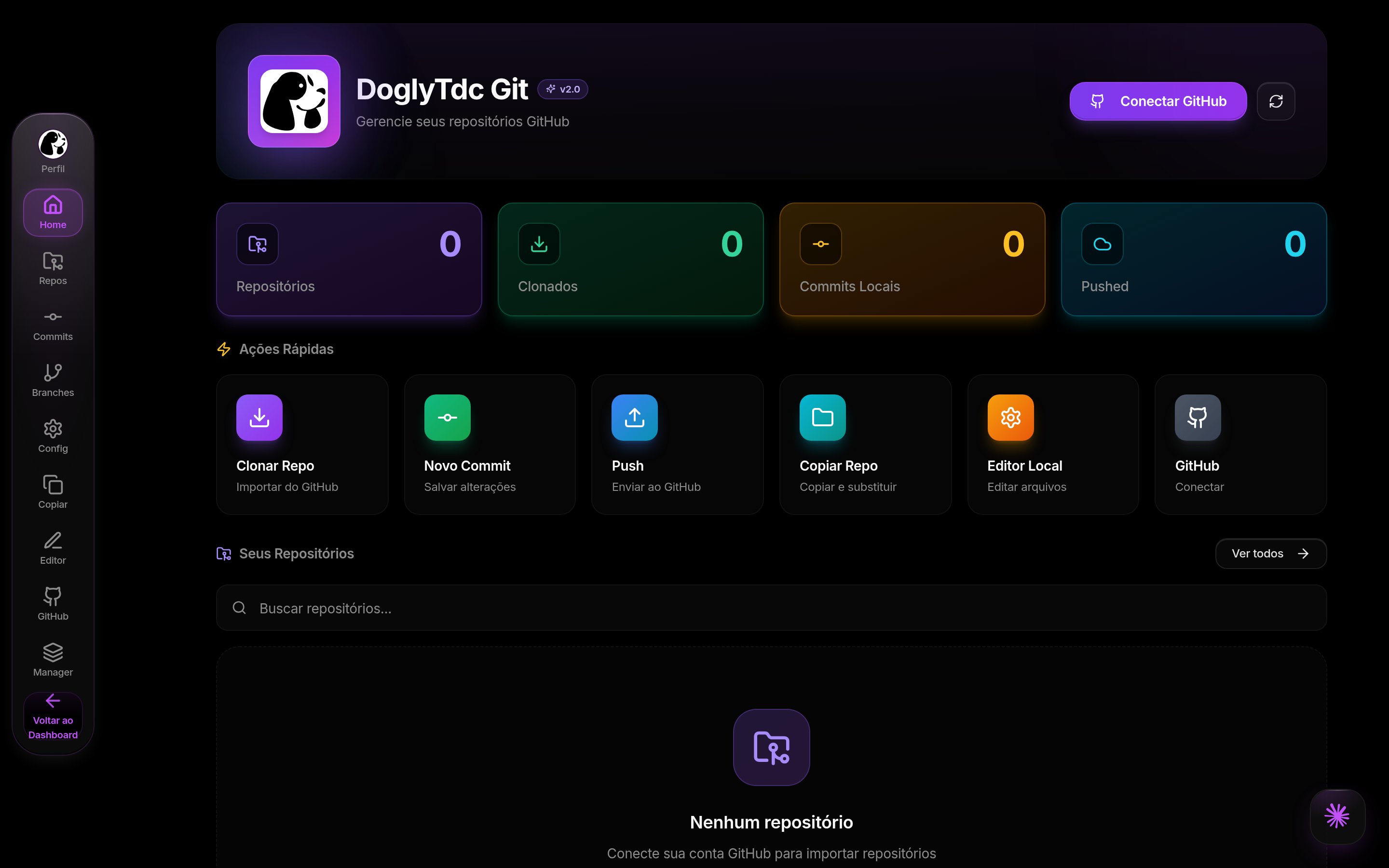
Git in DoglyTdc
Home
The initial view brings together indicators and shortcuts. There are entries for repositories, cloning, commits, push, and the local editor. Indicators do not replace operation confirmations. Check the selected account and repository.GitHub connection
The GitHub area lets you connect and switch accounts. The connected account’s permissions affect accessible repositories. Before changing content, check the active profile. Do not assume access to a repository absent from the list.Repositories and branches
The tool includes a repository list and branch management. Select the repository before performing operations. Check the branch to avoid working on the wrong destination. History lets you review commits.Local editor
The editor can link a folder on your device. This depends on browser support for folder selection. Binary files cannot be edited through this flow. Files larger than 5 MB are blocked from editing.1
Select the context
Choose the account and repository.
Check the destination before linking a folder.
2
Link the folder
Use the folder selection action.
Grant the access requested by the browser.
3
Edit and save
Open a supported text file.
Save the file or all modified files.
4
Check commit and push
Use the separate actions to record and send changes.
Do not treat a save confirmation as a push confirmation.
Download
The editor offers repository download as a ZIP. The start confirmation means the download was requested. Check the received file before relying on the copy.Copy to folder
The copy area offers folder and replacement actions. The clear-and-replace option can remove destination content. Check the selected folder before confirming. A folder created with instructions is not a completed clone.Manager access
Git provides an entry to Manager. That tool brings together additional project and transfer operations. Read the conditions for the chosen operation before running it.Credits and limits
No DoglyTdc credit debit was identified for the local actions described. This does not remove GitHub limits or permissions. The editing limit is 5 MB per file. The browser must support folder access. Compatibility with every browser is not guaranteed.Permissions
The connected GitHub account determines remote access. Local folders require explicit browser authorization. Local permission does not grant remote repository permission. Use a suitable working folder, especially for replacement actions.Common errors
Frequently asked questions
Does saving send changes to GitHub?
Does saving send changes to GitHub?
No. Local saving, committing, and pushing are separate stages.
Can I edit binary files?
Can I edit binary files?
Not in this editor. The interface blocks that file type.
Why can I not link a folder?
Why can I not link a folder?
The feature depends on the browser’s file access API and local authorization.
Is clear and replace safe for every folder?
Is clear and replace safe for every folder?
No. Check the destination and preserve a copy of needed content before continuing.