

Overview
Spaces organizes digital experiences for businesses. Creation starts with a niche and a composition of screens. Available features vary with the type of Space. A niche option does not guarantee every feature in its description.Who it is for
- Businesses that need their own digital experience.
- Gyms organizing workouts and a store.
- Restaurants and pizzerias with menus and orders.
- People responsible for business appearance and content.
How to open
Go to Dashboard › Spaces. The dashboard entry uses?tab=spaces.
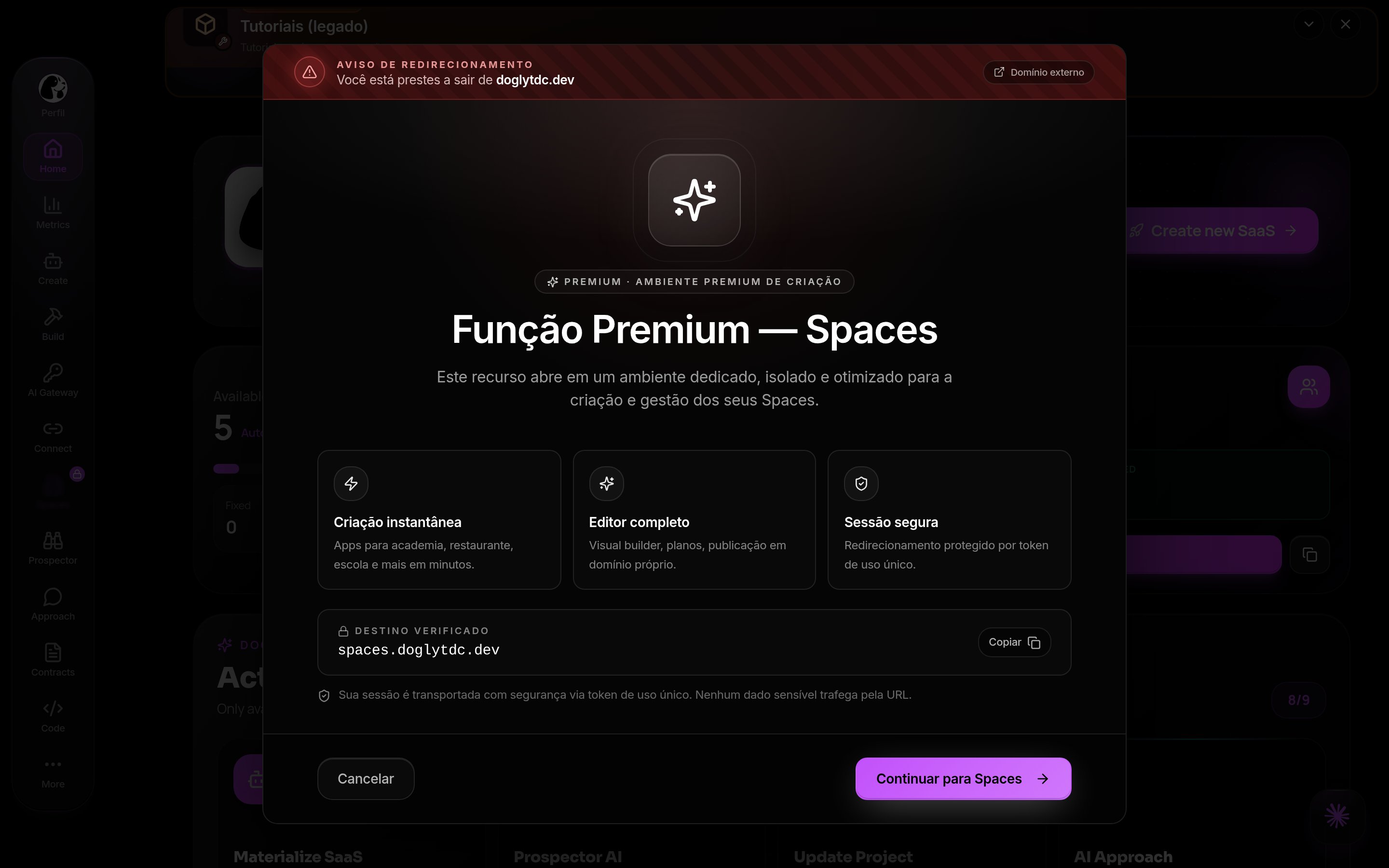
The dashboard may redirect you to the dedicated Spaces experience.
Use the creation and management controls shown there.
Screens and features
Spaces in DoglyTdc
Spaces list
This area brings together Spaces associated with your account. Open the intended Space before changing its experience. Check the selected business to avoid configuring a different Space.Creation assistant
The assistant presents niche options. These include Digital Menu, Gym, Pizzeria, and Restaurant. Barbershop, Salon, Clinic, School/Course, Store, Café, and Pet also appear. The Other option lets you describe a different need.1
Choose a niche
Select the type that best represents the business.
The niche guides the initial composition.
2
Answer the questions
Complete the required answers indicated by the assistant.
Describe the operation in concrete terms.
3
Set the appearance
Use the available appearance settings and preview.
Review the visual identity before continuing.
4
Create the Space
Wait for composition and saving to finish.
If the address identifier is taken, choose another one.
Gym
The implementation includes home, workouts, store, profile, and chat screens. Some screens have alternative layouts. The selected composition determines the final experience.Menu and orders
Modules include menu, QR code, cart, and order history. Pizzerias and restaurants have their own compositions. Check which modules are actually present in your Space.Business management
The experience includes profile and support modules. Service and booking panels also exist for the person in charge. Each module’s presence depends on the Space composition.Credits and limits
Operational access to Spaces is plan-restricted. The authorized commercial plans are Premium and Business. Free is not a Spaces access plan.
The fee is automatically withheld when the transaction is processed.
It is separate from AI credit usage.
Do not treat a credit balance as a way to remove transaction fees.
Check the limits shown for your plan before creating or expanding usage.
The niche list is broader than the specifically implemented modules.
Check the preview and created experience before promising features to a customer.
Permissions
Creation requires an authenticated account. Plan access is an additional condition beyond signing in. The visitor experience is separate from management. Opening a public Space does not mean you can administer it.Common errors
Frequently asked questions
Can the Free plan operate Spaces?
Can the Free plan operate Spaces?
No. Commercial access is intended for Premium and Business plans.
Do all niches have the same screens?
Do all niches have the same screens?
No. Modules and variations depend on the niche and composition.
Is the fee a credit debit?
Is the fee a credit debit?
No. It is a fee on a transaction processed in the Space.
Does choosing a niche guarantee all described features?
Does choosing a niche guarantee all described features?
No. Check the screens and modules actually included in the created experience.