

Summary
Contracts organizes documents, businesses, and signature tracking. The portal supports viewing and signing according to document settings. Signature status and payment status are separate information.Who it is for
- Professionals formalizing services and projects.
- People tracking documents awaiting signature.
- Teams consulting contracts and their amounts.
How to open
Go to Dashboard › Contracts. The entry uses?tab=contracts and may open contracts:dashboard.
To create a document, use ?tab=contracts:create.
Other screens use ?tab=contracts: followed by their screen identifier.
Screens and features
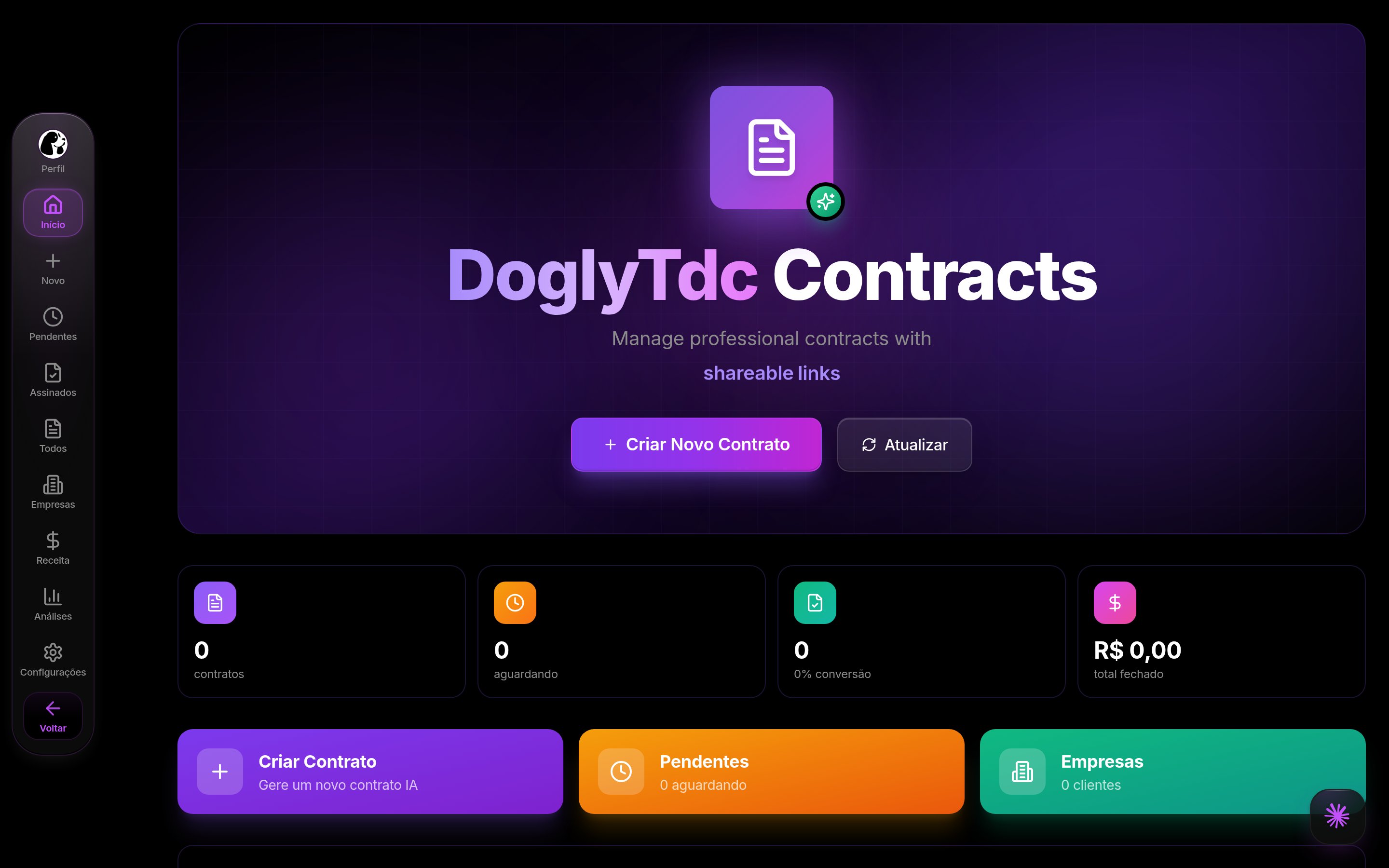
Contracts in DoglyTdc
Dashboard
Thedashboard screen provides the area’s starting view.
Use shortcuts to open documents and start creation.
Check signature and payment independently.
All
Useall to consult contracts available in the list.
Open details before sharing or changing a document.
The main list excludes archived records.
Analytics
Useanalytics to consult contract indicators.
Use the numbers to help organize documents.
Do not assume signature counts represent received revenue.
Companies
Usecompanies to browse the organization by business.
Check that the client and project match the intended document.
Review information before preparing a new contract.
Create
Usecreate to enter provider, client, and project information.
Complete amounts, deadlines, and available clauses.
The summary lets you check information before finishing.
1
Enter the parties and project
Provide your name, the client’s name, and the project name.
Complete the other information needed for the agreement.
2
Review the document
Check amounts, deadlines, clauses, and signature authentication settings.
Review the cost before generating.
3
Share carefully
Use the available access link or PDF.
Check the recipient and track signature progress.
Pending
Usepending to track documents awaiting signature.
A pending signature does not by itself indicate overdue payment.
Open the document to check its context.
Revenue
Userevenue to consult the amounts presented in the area.
Check the contract’s financial status in its details.
A signature does not replace payment confirmation.
Settings
Usesettings to adjust available preferences.
Creation supports choosing signatures with or without login.
The portal must respect the document’s requirement.
Signed
Usesigned to consult contracts with recorded signatures.
Removing a signed contract archives it as a record.
This differs from deleting an unsigned document.
Portal and access
The portal and contract view provide access to a shared document. Regenerating the token invalidates the previous link. When linking billing, confirm that the link was saved successfully. A contract can be saved even if billing linkage fails.Credits and limits
Creation checks credits unless applicable unlimited access is available. Check the displayed cost and balance before generating. Tool credits are not the amount agreed with your client. Signature access depends on the document’s chosen settings.Permissions
Contract management takes place in your dashboard session. Collaborator participation is handled through contract features. Possessing a link does not remove a configured authentication requirement. Share documents and links only with authorized participants.Common errors
Messages retain their original Portuguese wording for recognition.Frequently asked questions
Can I delete a signed contract?
Can I delete a signed contract?
The action archives it to preserve the record.
It does not permanently delete the signed document.
Does signed mean paid?
Does signed mean paid?
No. Check payment status separately.
A signature record does not prove receipt of funds.
Does the old link work after regenerating the token?
Does the old link work after regenerating the token?
No. A new token invalidates the previous link.
Share the new access with authorized people.