

Overview
Manager brings together operations for projects connected to GitHub. The interface offers exploration, history, transfers, and export. Each operation has a distinct purpose. An exported package does not guarantee a complete, restorable application copy.Who it is for
- People managing projects associated with repositories.
- People reviewing structure and history.
- People preparing a transfer between projects.
- People generating a package and an import prompt.
How to open
Go to Dashboard › Git › Manager. Git uses?tab=git.
The initial Manager view corresponds to ?tab=manager:home.
Other views use the manager: prefix.
Screens and features
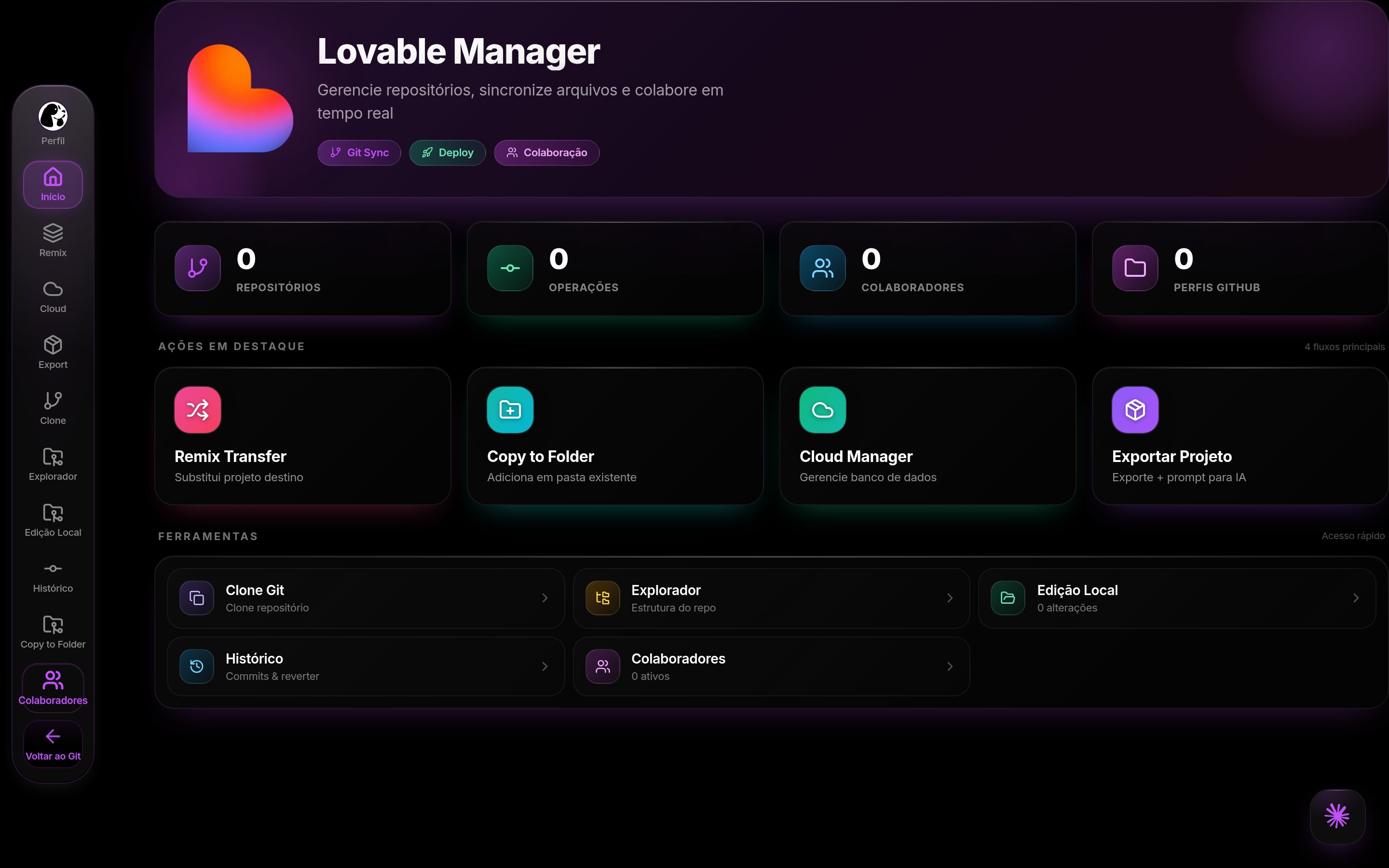
Manager in DoglyTdc
Home
Home shows shortcuts and operation indicators. It also presents repositories, collaborators, and connected profiles. Check the profile and repository before continuing. Indicators do not replace individual operation results.GitHub and explorer
Manager works with connected repositories. The explorer presents their structure. There are entries for cloning and local editing. Availability depends on access to the selected repository.History
The history area presents operations and commits. The interface also includes a revert action. Check the target before reverting a change. Treat a revert as a project modification.Remix Transfer
Remix Transfer is presented as replacing the destination project. Do not treat it as an impact-free copy. Check source and destination before running it. Preserve needed material before replacing content.Copy to Folder
This option adds content to an existing folder. It differs from replacing an entire project. Check the folder and content involved in the operation. Read screen confirmations before continuing.Cloud Manager
The Cloud area brings together database-related controls. Repository access does not prove that all data is available. Check the connected context before running an operation.Export project
Export lets you select package components. Options include code, data, configuration, and prompt. The generated download is a JSON file. The import prompt can be copied separately.1
Select the repository
Confirm the project and active profile.
Check the context before exporting.
2
Choose components
Select the required options.
Code structure is not the full content of every file.
3
Run export
Wait for preparation and the JSON download.
Read any error messages.
4
Validate the package
Check the received content and its gaps.
Do not rely on it as your only recovery copy.
Credits and limits
No DoglyTdc credit debit was identified in the export flow described. The package depends on selected options and integration responses. Some sections may remain empty when no data is returned. Automatic restoration or parity with the original project is not guaranteed.Permissions
Operations depend on the connected account and integrations. The interface distinguishes collaborators with different roles. Read access should not be mistaken for permission to replace content. Before transferring, confirm access to both source and destination.Common errors
Frequently asked questions
Is the JSON a guaranteed complete backup?
Is the JSON a guaranteed complete backup?
No. It may contain structure and partial information without every restoration element.
Are Remix Transfer and Copy to Folder the same?
Are Remix Transfer and Copy to Folder the same?
No. The former is presented as destination replacement; the latter adds content to a folder.
Does copying the prompt import the project?
Does copying the prompt import the project?
No. Copying only puts text on the clipboard.