

Who it is for
For people getting started with their own account.How to open
Dashboard › Create account/auth
Screens and features
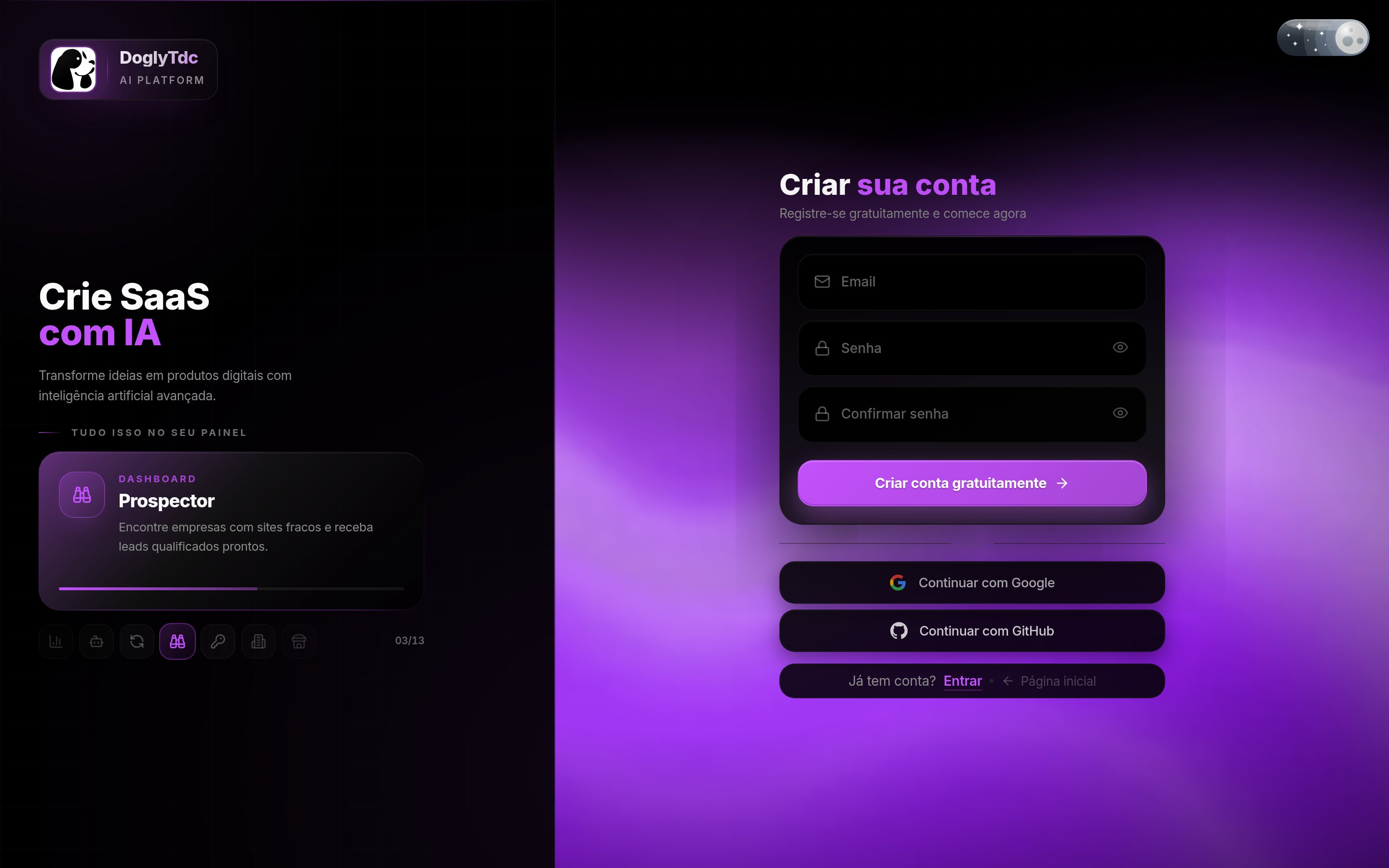
Create account in DoglyTdc
Registration
Enter email, password and confirmation. Registration requires at least 6 characters and matching passwords.1
Open sign-up
Go to
/auth and choose Create account.2
Fill in your details
Enter your email, a password and the same value in Confirm password.
3
Submit
Click Create account and open the confirmation email we send.
Sign in
Sign in with email and password or use Google and complete provider authorization. For an existing account, reset the password rather than registering again.1
Open sign-in
Go to
/auth; the screen opens on Sign in.2
Choose a method
Use email and password, or Continue with Google / Continue with GitHub.
3
Confirm
Complete the provider’s authorization if asked. Once signed in, the dashboard opens on Home.
Verify email
Open the emailed link. The waiting screen detects confirmation. Resending follows the displayed countdown; request another link if it expires.1
Open the email
Look for the DoglyTdc message in your inbox and spam folder.
2
Click the link
The confirmation screen checks the link and shows that your email is confirmed.
3
Continue to the dashboard
You are taken to the dashboard. If the link expired, request a new one with Resend confirmation email (wait about 1 minute between requests).
Reset password
Request recovery using the account email. Open the link and set a password of at least 8 characters, repeating it in the second field.1
Request the link
On
/auth, use the forgot-password option and enter your account email.2
Open the link
The link opens the New Password screen.
3
Set the password
Fill in the new password and its confirmation with at least 8 characters and save. Wait for the success message.
Welcome setup
Set a nickname, @username, name and photo. Wait for saving to finish. Completion is remembered for the account and device. Review terms and privacy; not every login variant is assumed to have a consent checkbox.1
Start
On your first sign-in you see the welcome screen. Click Let’s start.
2
Answer each step
Enter a nickname, your @ (at least 3 characters: a-z, 0-9, _ and .), full name, an optional photo and a theme.
3
Finish
Review your profile and current plan, then enter the platform. Wait for the profile-created confirmation.
Credits and limits
Browsing and editing your profile do not spend credits. Tool actions may use your balance.Permissions
Sign in to edit your data. Spaces and Workspaces require Premium or higher for ordinary access.Common errors
Frequently asked questions
Do I need a subscription?
Do I need a subscription?
Browsing and profile editing do not require a subscription; tools may require plans.
Are Pay and credits the same?
Are Pay and credits the same?
No. They are separate balances.
Does a shortcut unlock access?
Does a shortcut unlock access?
No. Permission checks still apply.
Related
Dashboard
Move around Home, the menus, the Modular Menu and dashboard addresses.
Account and profile
Edit your name, @, photo and presence, and see what your public profile shows.