

Summary
Security brings together account access controls. It includes passwords, PIN protection, recovery, and dashboard protection. The sessions section shows the current session and lets you disconnect the others.Who it is for
- Account holders strengthening account protection.
- People who need to set or change a password.
- Users who want to end access in other environments.
How to open
1
Sign in
Use your own DoglyTdc account.
2
Open Settings
Choose Security from the settings list.
3
Review the relevant section
Find password, PIN, recovery, or Sessions & Protection.
Screens and features
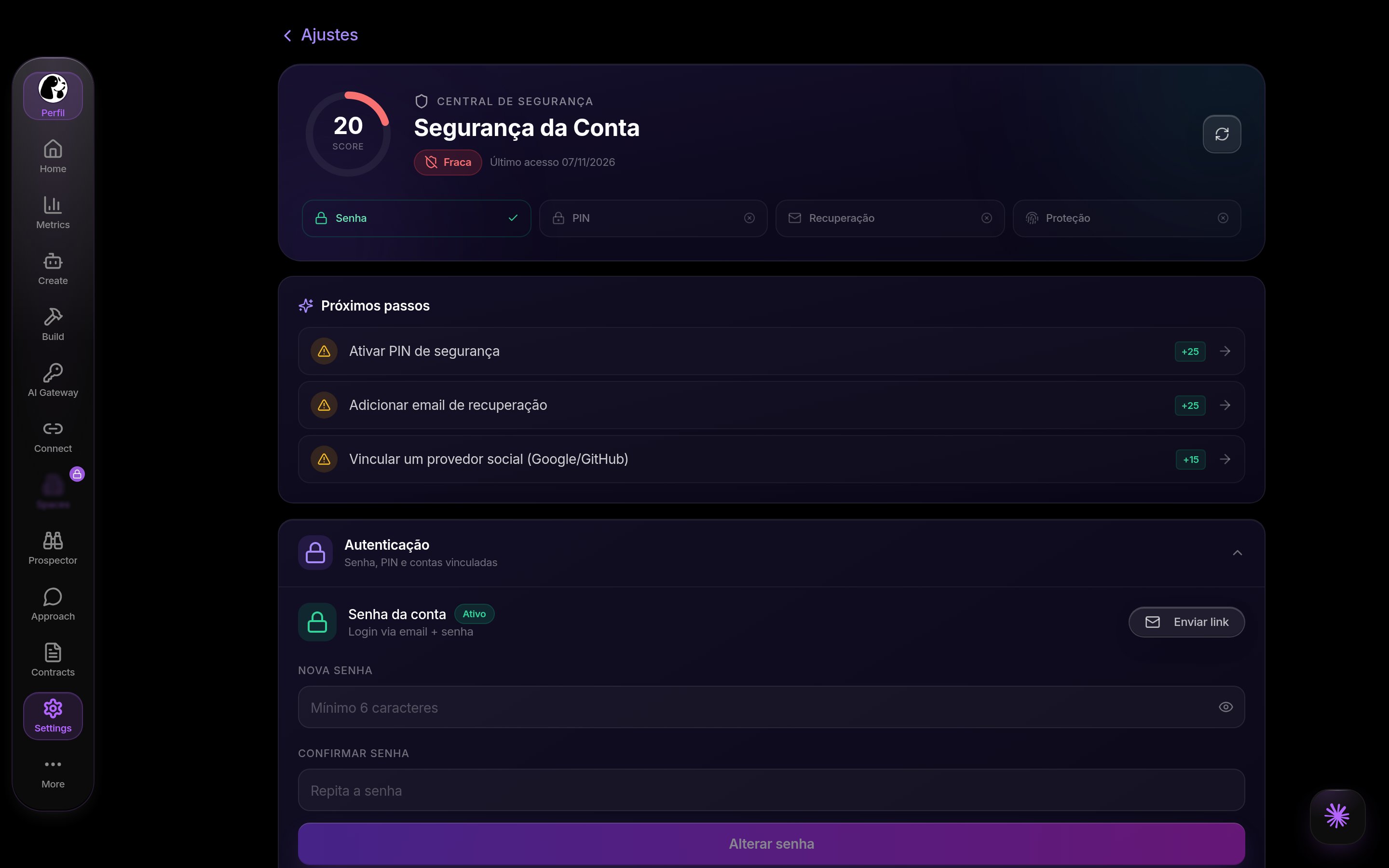
Security in DoglyTdc
Password
The screen distinguishes accounts with a password from those needing to set one. Enter and confirm the new password according to the displayed policy. The flow may require code confirmation. Do not share codes received to complete a change.Security PIN
The form requests a 4-to-6-digit PIN and its confirmation. Both values must match. You can also remove an existing PIN after confirming. Removing this protection reduces the safeguards available for the account.1
Open PIN setup
Enable the PIN option in Security.
2
Enter and confirm
Enter 4 to 6 digits and repeat the same value.
3
Save
Confirm setup and review the controls that require your PIN.
Dashboard protection
Dashboard protection uses the PIN to lock the dashboard. It is separate from your account password. Set up a PIN before enabling protection that depends on it. This lock is not a substitute for ending unauthorized sessions.Recovery email
The screen lets you add and remove a recovery address. It must be valid and different from your primary email. Follow the confirmation instructions sent to the relevant address.Sessions & Protection
The screen displays the current session. It does not provide a detailed list of all connected devices. The session identifier is accessible to the browser; it is not hidden from it. Use collective sign-out when you need to revoke other access.1
Find sessions
Open Sessions & Protection.
2
Choose to disconnect other sessions
Read the action confirmation.
3
Confirm
Other sessions are disconnected while the current one remains active.
Limits
- This screen has no detailed device inventory.
- Sign-out applies collectively to other sessions.
- Password and PIN actions may be temporarily blocked for security reasons.
- A PIN does not replace passwords, recovery, or browser safety.
Permissions
These controls are intended for the signed-in account holder. Sensitive changes may require additional confirmation. Never ask someone else to share a password, PIN, or confirmation code.Common errors
Original interface messages are retained below.Frequently asked questions
Can I choose one specific device to disconnect?
Can I choose one specific device to disconnect?
This screen signs out other sessions without a detailed per-device list.
Will the current session also end?
Will the current session also end?
The documented control disconnects other sessions.
Does the PIN replace my password?
Does the PIN replace my password?
No. It is additional protection with its own controls.